Outlook
Connecting your Outlook mailbox brings your emails and their attachments into Ordalie, so you can search your correspondence, point the assistant to a particular message in the middle of a conversation, and have it read an attachment without downloading anything first.
Outlook is a personal connection, tied to your own Microsoft account rather than to your organization. Any user on the Pro plan can set it up. You can start from the left sidebar of your workspace, in the Documents section, by choosing Connect a source, or from your personal Settings, under the Integrations tab. Both lead to the same place.
Find Outlook in the list of sources and start the connection. A Microsoft sign-in window opens; sign in with your own account and approve the read-only access Ordalie asks for. Once you confirm, the window closes and your mailbox appears as a source in the Documents section of the sidebar.
What you can do with it
Ordalie reads your mailbox through the Microsoft Graph API. Your folders appear just as they do in Outlook, with Inbox, Sent Items and your own folders, and you can browse them directly in your workspace. Messages are listed by date, newest first, and load page by page; each message's attachments sit just below it, ready to open and read with the assistant. You can run a full-text search across your emails, optionally within a date range, or simply describe what you're looking for and let the assistant retrieve it. In the Outlook add-in, the assistant can also work from the selected email and prepare a reply, reply-all, new-message or meeting draft. The draft opens in Outlook for you to review and send yourself.
The Outlook add-in
The Ordalie Assistant for Outlook add-in opens the assistant in a pane to the right of the email you're reading. To install it, open Add-ins in Outlook (the Apps button in the new Outlook and Outlook on the web), search for Ordalie and click Add. A Microsoft 365 administrator can also deploy it for the whole organization from the admin center (Integrated apps).
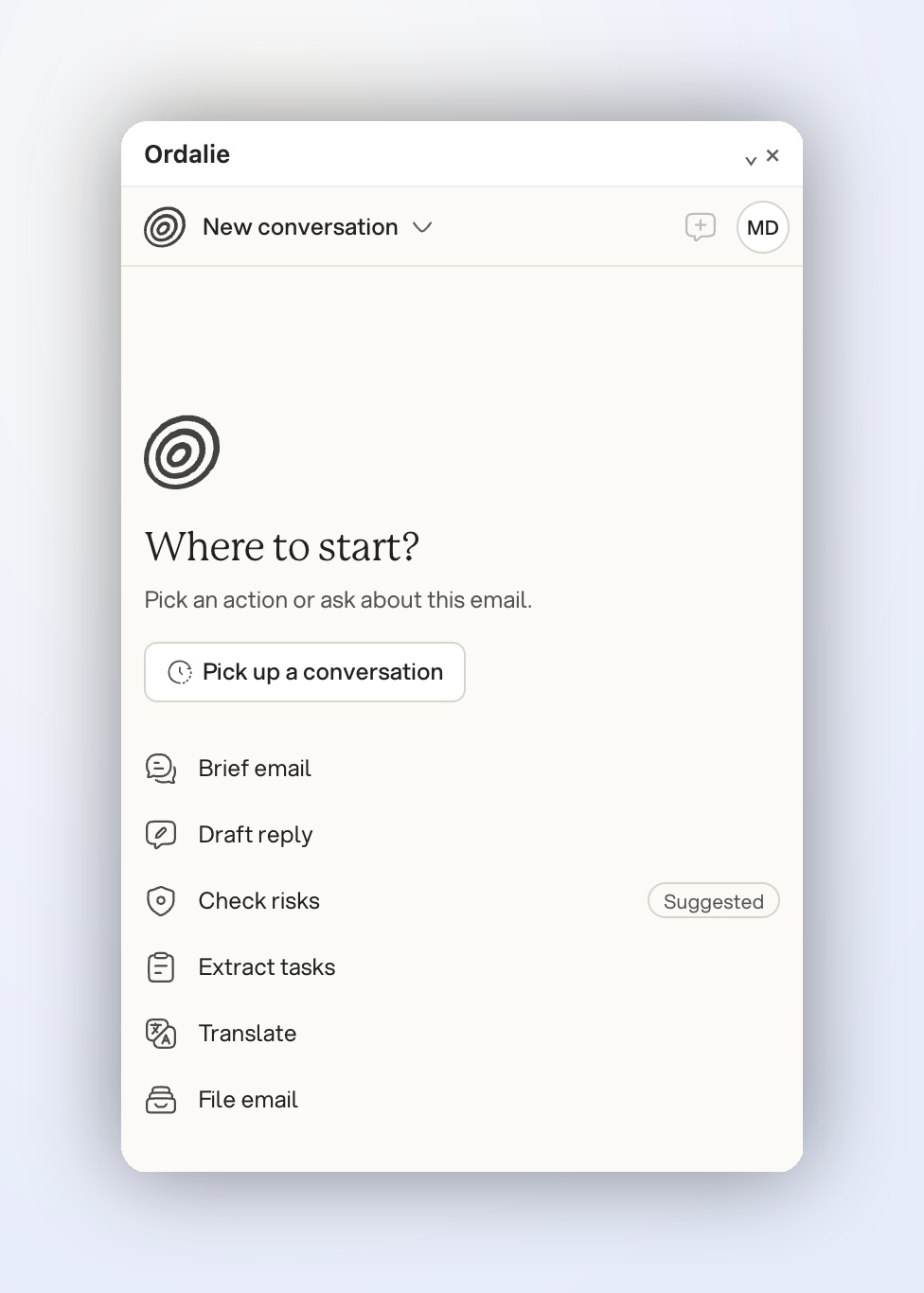
Select an email, click Ordalie in the ribbon and sign in with your Ordalie account. Ask your own question or pick a quick action:
- Brief email: the gist of the email and its attachments in a few lines.
- Draft reply: prepares a reply and opens it as a draft in Outlook.
- Check risks: flags sensitive points, deadlines and commitments; the action is marked Suggested when the email calls for it.
- Extract tasks: lists the requests and next steps.
- Translate: translates the email into the language you choose.
- File email: saves a copy of the email to your Ordalie workspace so you can find and analyze it later.
Click an attachment shown in the pane to add it to Ordalie; attachments over 25 MB can't be imported from Outlook.
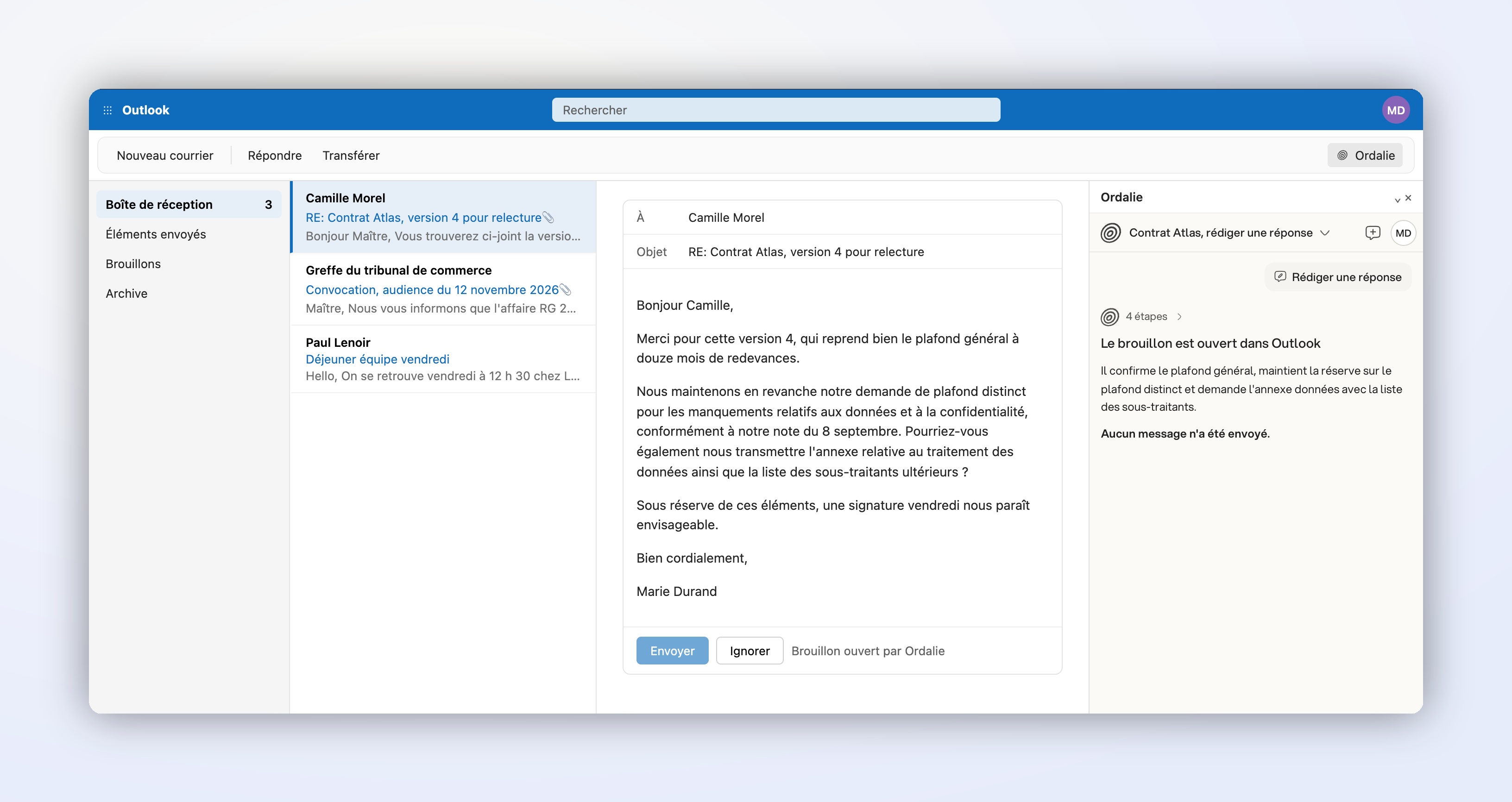
The draft stays fully editable: Ordalie never sends it, and the original message is neither changed nor deleted.
Permissions and privacy
Ordalie only asks for read access to your mailbox, so it can never send, change or delete any of your emails. Two permissions are requested:
- Mail.Read — read access to your mailbox
- offline_access — keeps the connection refreshed so you don't have to sign in again
Your emails are not copied onto Ordalie's servers. They are read on demand through the Microsoft Graph API and stay on Microsoft's servers, unless you choose to file an email or import an attachment: a copy is then saved to your Ordalie workspace.
Common questions
Can Ordalie send emails for me? No. The mailbox connection stays read-only. In the Outlook add-in, Ordalie can prepare and open an editable draft, but it never sends it: you review and send from Outlook yourself.
Are my emails stored on Ordalie's servers? No, except the ones you file and the attachments you import. Everything else is read on demand through the Microsoft Graph API and stays on Microsoft's servers.
Which folders can Ordalie see? Every folder your own account can see, since the access is read-only and scoped to your mailbox.
How do I revoke access? Disconnect Outlook from your Settings, under the Integrations tab, or remove Ordalie from your Microsoft account's permissions page.